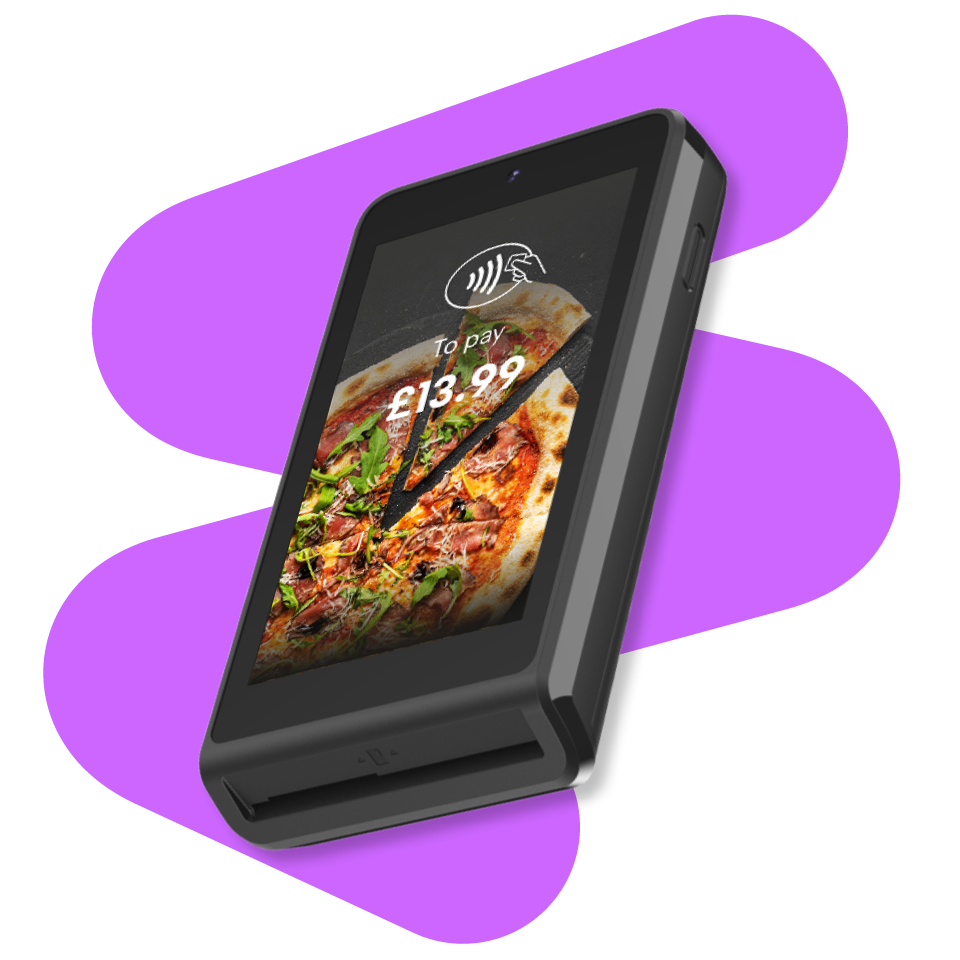
Castles Saturn S1MINI2 quick start guide
Follow our step-by-step user guide to get your Mini up and running, explore important functions and start taking payments in less than 5 minutes.
First up, check you have the following items included with your terminal:
You're now ready to set up and power on your new POS device.
Step 1: Connect the USB charging cable to the charging port on the terminal.
Step 2: Connect the power adapter to a mains power outlet.
Step 3: Allow the terminal to charge before first use.
Step 4: Press and hold the power button until the terminal powers on.
Step 5: Once powered on, ensure the battery icon indicates the terminal is charging.
Step 1: Press the back arrow on the screen to exit to the main menu.
Step 2: Select the 'MENU' icon
Step 3: Select the 'Wi-Fi SETTING' icon
Step 4: Select your Wi-Fi network from the available list.
Step 5: Enter your Wi-Fi password and select Connect. Note: Passwords are case-sensitive.
Step 6: Select the back button twice to return to the main menu.
Step 7: Open the Castles Payment App
Step 8: Select the back button in the top-left corner.
Step 9: Select Others, then More Txn.
Step 10: Select Logon.
Step 11: Select All from the available logon options.
Step 12: Perform a test transaction to confirm the terminal is connected successfully.
Following a Wi-Fi change, always perform a Logon before taking payments.
Total agreed - The value of transactions successfully authorised and received by Worldpay. These transactions will be included in settlement.
Total disagreed - The value of transactions where the terminal and host do not agree on the transaction status. This is usually caused by a communication interruption during processing. If a value is shown, perform the End of Day process again. If the issue remains, contact support.
Unconfirmed - The value of transactions that could not be confirmed due to a communication issue between the terminal and the host. Check the terminal's network connection and perform the End of Day process again.
Password: 0000
Referral: 00000
Debug: For support use only. Do not use unless instructed by the Helpdesk.
Volume: Allows the terminal volume to be increased or decreased.
Will the terminal work with no till roll? – No. A till roll must be installed for the terminal to operate correctly.
Set-up guide
Set-up guide
Set-up guide